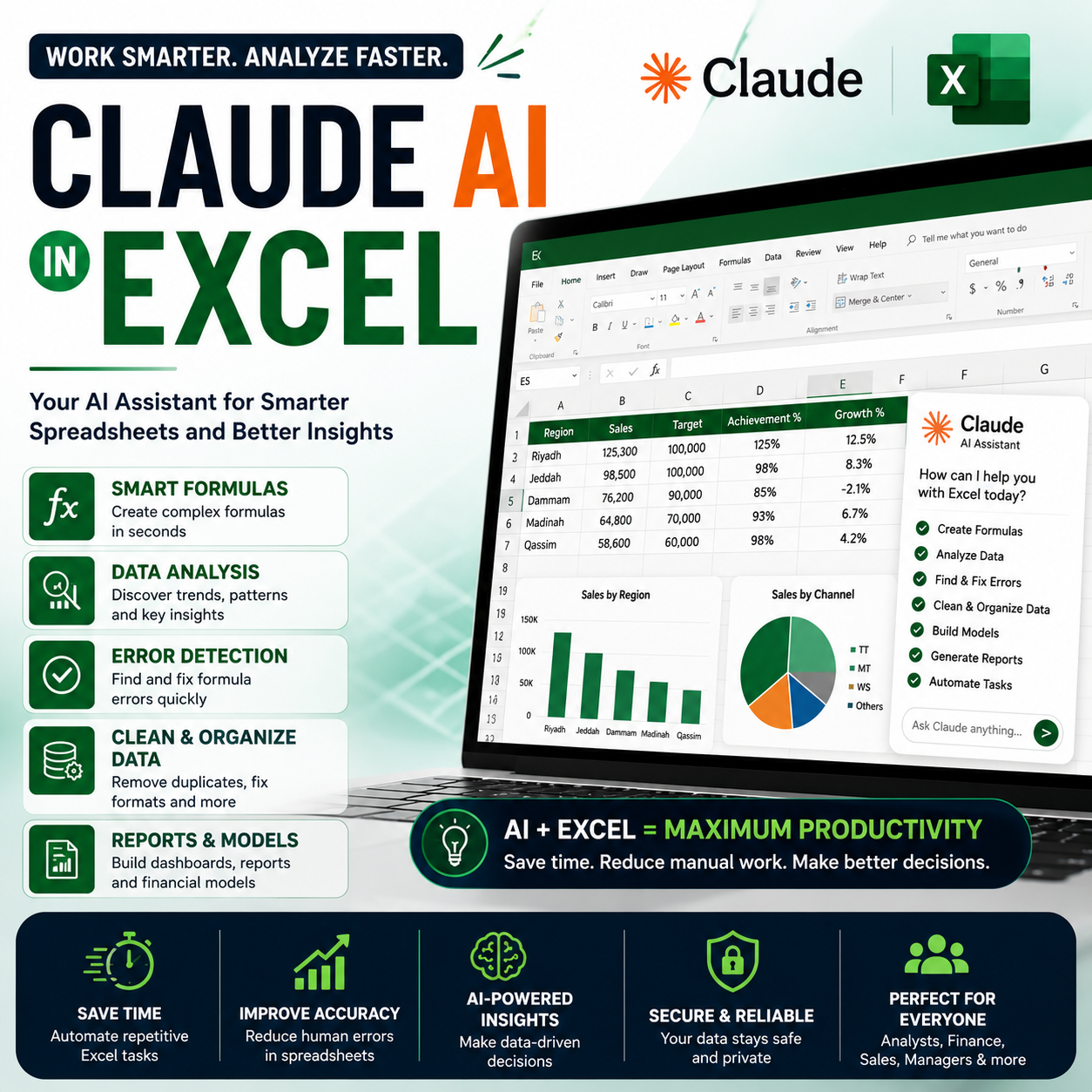
Claude AI in Excel: Benefits, Features and How to Use It
Microsoft Excel has been one of the most important tools for data analysis, reporting, financial modeling, business planning, and everyday office work. However, working with large spreadsheets can often be time-consuming, especially when you need to write complex formulas, identify errors, clean data, analyze trends, or build reports.
Artificial Intelligence is changing the way people work with spreadsheets.
Claude AI, developed by Anthropic, can now work directly with Microsoft Excel through its Excel integration. Claude can help users create and modify spreadsheets, generate formulas, analyze data, identify errors, and perform multi-step spreadsheet tasks. Anthropic has also expanded Claude's capabilities across Microsoft Excel, PowerPoint, Word and other Microsoft 365 applications.
This means Excel users no longer have to rely entirely on manually writing formulas or spending hours searching for solutions online.
In this guide, we will explore what Claude AI can do in Excel, its major benefits, how to use it, useful prompts, practical business examples, and some important limitations to keep in mind.
What is Claude AI?
Claude is an artificial intelligence assistant developed by Anthropic.
It can understand natural-language instructions and help users perform tasks involving writing, analysis, coding, research, documents, spreadsheets and other types of knowledge work.
Instead of remembering complicated Excel syntax, users can describe what they want in normal language.
For example, instead of manually constructing a complex formula, you can ask:
"Find the sales amount for each customer using Customer ID and return 'Not Found' when there is no match."
Claude can help create the appropriate Excel formula and explain how it works.
What is Claude for Excel?
Claude for Excel is designed to bring Claude's AI capabilities directly into the spreadsheet workflow.
According to Anthropic, Claude can work directly in Excel to help build financial models, audit formulas, analyze data and perform sensitivity analysis. Claude can also handle longer and more complex spreadsheet tasks, plan before making changes, understand unstructured data and perform multiple changes in a single workflow.
The Claude for Excel add-in is generally available, making it possible to use Claude directly inside Excel rather than constantly switching between Excel and an AI chat window.
Why Use Claude AI in Excel?
Traditional Excel work often requires three different skills:
1. Understanding the business problem
2. Knowing the correct Excel formula or feature
3. Knowing how to implement the solution correctly
Claude can help bridge the gap between these three areas.
You can explain your requirement in plain English and ask Claude to suggest a formula, analyze the spreadsheet, explain an error, or help restructure the workbook.
This can be particularly useful for business analysts, accountants, finance professionals, sales teams, data analysts, managers and Excel power users.
Major Benefits of Claude AI in Excel
1. Generate Excel Formulas
One of the biggest advantages is the ability to generate Excel formulas from natural-language instructions.
For example, you can ask:
"Create a formula that calculates total sales only when the customer belongs to the Riyadh region and the channel is Traditional Trade."
Claude can generate an appropriate formula and explain each part.
This is especially useful for complex functions involving:
- XLOOKUP
- INDEX and MATCH
- SUMIFS
- COUNTIFS
- IF and nested IF
- FILTER
- UNIQUE
- SORT
- TEXT functions
- Date calculations
- Dynamic Array formulas
Instead of remembering the exact syntax, you can focus on explaining the business requirement.
2. Explain Existing Excel Formulas
Sometimes the biggest problem is not creating a formula but understanding one written by someone else.
For example:
=IFERROR(XLOOKUP(A2,CustomerMaster!A:A,CustomerMaster!E:E),"Not Found")
You can ask Claude:
"Explain this Excel formula in simple terms."
Claude can break the formula into individual components and explain what each part does.
This is particularly useful when working with legacy Excel files.
3. Find and Fix Formula Errors
Excel errors such as:
- #N/A
- #VALUE!
- #REF!
- #DIV/0!
- #NAME?
- #SPILL!
can be difficult to troubleshoot when a workbook contains hundreds or thousands of formulas.
Claude can help investigate formula problems and suggest corrections.
For example:
"Find the reason why this formula is returning #N/A and suggest a corrected version."
It can help identify issues such as:
- Incorrect cell references
- Missing data
- Wrong ranges
- Incorrect lookup logic
- Data type mismatches
- Missing quotation marks
- Incorrect function syntax
However, formulas generated or modified by AI should always be reviewed before being used in important business reports.
4. Analyze Large Excel Data Sets
Claude can help analyze spreadsheet data and identify useful patterns.
For example, you could ask:
"Analyze this sales data and identify the five customers with the highest sales."
Or:
"Compare monthly sales by region and identify regions where sales declined."
Claude can help transform raw spreadsheet data into useful business insights.
This can reduce the amount of manual analysis required.
5. Clean and Organize Data
Data cleaning is one of the most time-consuming parts of Excel work.
Claude can assist with tasks such as:
- Identifying duplicate records
- Finding missing values
- Standardizing names
- Detecting inconsistent formatting
- Identifying unusual values
- Suggesting data-cleaning formulas
- Structuring raw data
- Standardizing categories
For example:
"Find duplicate Customer IDs and identify which records should be reviewed."
This can be particularly useful when working with Customer Master data.
6. Build Financial Models
Claude can also assist with more advanced spreadsheet work.
Anthropic reports that Claude for Excel is being used for financial modeling, formula auditing and sensitivity analysis.
For example, you can ask:
"Create a monthly revenue forecast based on the historical sales data in this workbook."
Or:
"Build a sensitivity analysis showing the impact of a 5%, 10% and 15% change in selling price."
Claude can help structure the model and explain the assumptions.
For critical financial decisions, however, the calculations and assumptions should always be independently verified.
7. Create Business Reports
Excel is frequently used to prepare management reports.
Claude can help turn raw data into a more structured reporting workflow.
For example:
"Analyze this monthly sales data and create a management summary showing total sales, growth percentage, top customers and underperforming regions."
It can help identify the information that should be highlighted and assist with the formulas and structure required to produce the report.
8. Work With Complex Multi-Step Tasks
One of the major developments in Claude's Excel capabilities is its ability to handle longer and more complex spreadsheet tasks.
Instead of giving the AI one small instruction at a time, users can describe a larger objective.
For example:
"Review this workbook, identify formula errors, standardize the date format, calculate monthly sales growth, identify the top 20 customers and prepare a summary sheet."
Claude can work through multiple steps rather than treating every task as an isolated question.
Anthropic says Claude for Excel can plan before acting, understand unstructured data and handle multi-step changes in one pass. :contentReference[oaicite:1]{index=1}
9. Improve Excel Productivity
The biggest benefit of AI in Excel is not necessarily replacing Excel skills.
It is reducing the amount of time spent on repetitive work.
For example, a task that previously required:
- Searching Google
- Reading Excel documentation
- Testing several formulas
- Debugging errors
- Formatting results
may be reduced to a conversation with Claude followed by human verification.
This can allow analysts to spend more time understanding the business problem instead of fighting with spreadsheet syntax.
How to Use Claude AI With Excel
Step 1: Prepare Your Excel Workbook
Before asking Claude to work on a spreadsheet, make sure your workbook is reasonably organized.
Good practices include:
- Use clear column headings
- Remove unnecessary blank rows
- Keep data in structured tables
- Use consistent date formats
- Avoid unnecessary merged cells
- Use meaningful worksheet names
- Keep raw data separate from reports
A well-structured workbook makes it easier for AI tools to understand the data and produce useful results.
Anthropic also recommends setting files up properly so Claude can understand templates, structures and existing standards before making changes. :contentReference[oaicite:2]{index=2}
Step 2: Install or Open Claude for Excel
If your organization or Claude plan provides access to the Excel integration, install the Claude for Excel add-in through the supported Microsoft environment.
After installation, Claude can be accessed from within Excel.
Availability and features can depend on the Claude plan, Microsoft environment and organizational configuration.
Step 3: Open Your Workbook
Open the Excel workbook you want to analyze.
Before allowing an AI tool to make major changes, it is good practice to create a backup copy of the original file.
For important business workbooks, keep the original version unchanged.
Step 4: Give Claude a Clear Instruction
The quality of the result depends heavily on the quality of your instruction.
Instead of saying:
"Fix this."
Give Claude more context:
"Review the Sales sheet. Check the formulas in columns H and I, identify any inconsistent formulas, explain the problem and suggest corrections. Do not change the original data."
A clear prompt gives Claude a better understanding of your objective.
Step 5: Ask Claude to Explain Before Changing
For important workbooks, it is often better to ask Claude to analyze first.
For example:
"Analyze the workbook and tell me what you intend to change. Do not modify anything yet."
After reviewing the proposed changes, you can ask Claude to proceed.
This approach provides better control over important spreadsheets.
Useful Claude Prompts for Excel
Formula Generation
"Create an XLOOKUP formula that returns the Sales Route based on Customer ID."
Formula Explanation
"Explain this formula step by step in simple language."
Error Detection
"Find formulas that are inconsistent with the surrounding rows and identify potential errors."
Data Cleaning
"Identify duplicate Customer IDs and summarize the duplicate records."
Sales Analysis
"Analyze monthly sales and identify the top five customers and bottom five customers."
Growth Analysis
"Calculate month-over-month sales growth for each region."
Customer Analysis
"Identify customers whose sales have declined for three consecutive months."
Route Planning
"Analyze this customer list by region and sales route and identify routes with unusually high customer counts."
FMCG Analysis
"Compare Traditional Trade, Modern Trade and Wholesale sales by region and identify the strongest and weakest channels."
Dashboard Preparation
"Prepare a summary table containing total sales, active customers, average sales per customer, top 10 customers and regional sales."
Claude AI for FMCG and Sales Teams
Claude can be particularly useful in FMCG environments where Excel is frequently used for:
- Customer Master Management
- Sales Analysis
- Route Planning
- Journey Plan Analysis
- Customer Segmentation
- Sales Target Tracking
- SKU Analysis
- Distribution Analysis
- Regional Performance
- Customer Coverage
- Sales Forecasting
- Inventory Analysis
For example, a Route-to-Market specialist could ask:
"Analyze the customer master and identify routes where the number of customers is significantly higher than the average route."
Another useful prompt could be:
"Compare planned customer visits against actual visits and identify routes with low adherence."
AI does not replace the business knowledge of the RTM or Sales team. Instead, it can help accelerate the analysis.
Claude vs Traditional Excel Workflow
A traditional workflow might look like this:
Understand the requirement → Search for a formula → Build the formula → Test it → Fix errors → Copy it across the workbook → Validate the results.
With Claude, the workflow can become:
Describe the requirement → Ask Claude for a solution → Review the proposed approach → Apply the changes → Validate the results.
This does not eliminate the need for Excel knowledge.
Instead, it allows users to combine Excel expertise with AI assistance.
Important Limitations
Although Claude can be extremely useful, it should not be treated as an infallible Excel expert.
AI-generated formulas can sometimes be incorrect.
Always verify:
- Formulas
- Totals
- Business assumptions
- Dates
- Percentages
- Financial calculations
- Lookup results
- Data transformations
This is especially important for financial reports, management dashboards, payroll, tax calculations and other high-impact business processes.
Data Privacy and Security
Before uploading or exposing business data to any AI system, check your organization's policies and the applicable Claude/Microsoft configuration.
Do not blindly provide:
- Passwords
- API keys
- Confidential credentials
- Sensitive personal information
- Highly confidential company information
- Proprietary data that your organization prohibits from being shared
For enterprise environments, administrators should review permissions, connectors, data handling and security policies before deploying AI across business workflows.
Best Practices for Using Claude in Excel
1. Give Context
Tell Claude what the data represents and what you are trying to achieve.
2. Specify the Expected Output
Instead of asking for "analysis", specify exactly what you want.
For example:
"Return a table containing Region, Total Sales, Growth %, Customer Count and Average Sales per Customer."
3. Ask for Explanation
If you do not understand the formula, ask Claude to explain it.
4. Review Before Applying
Always review important changes before accepting them.
5. Keep Backups
Create a backup before allowing major modifications to a workbook.
6. Validate Results
Compare AI-generated results against known totals or independent calculations.
7. Start Small
Test Claude on a copy or a small section of your workbook before applying changes to a large business file.
The Future of Excel and AI
The traditional Excel workflow is evolving.
Excel users previously needed to know exactly which formula or feature to use. AI-assisted Excel changes this approach by allowing users to describe the desired result using natural language.
Claude's integration with Excel is part of a broader movement toward AI-assisted productivity across Microsoft applications.
Anthropic says Claude can work across Excel, PowerPoint and Word through Microsoft 365 add-ins, allowing context to move between applications. :contentReference[oaicite:3]{index=3}
For example, a workflow could start with:
Excel → Analyze sales data → Build a financial model → Create a PowerPoint presentation → Prepare a management summary.
This type of cross-application workflow can significantly reduce repetitive work.
Final Verdict
Claude AI can become a powerful assistant for Excel users.
Its biggest advantage is not simply writing formulas. The real value comes from combining natural-language instructions with spreadsheet analysis, formula assistance, data cleaning, error detection, modeling and multi-step workflows.
For beginners, Claude can make difficult Excel concepts easier to understand.
For experienced Excel users, it can accelerate repetitive tasks and help troubleshoot complex problems.
For business analysts and managers, it can help transform raw spreadsheet data into meaningful insights.
However, AI should be treated as an assistant rather than the final authority. Important formulas, calculations and business decisions should always be reviewed by a qualified person.
The future of Excel is not necessarily "Excel without humans."
It is more likely to be:
Human expertise + Excel + AI = Faster and smarter data analysis.
If you already use Excel regularly, learning how to communicate effectively with AI may become just as valuable as learning individual Excel formulas.
No comments yet. Be the first to share a thought.