What Is VLOOKUP?
VLOOKUP, or Vertical Lookup, searches for a value in the first column of a table and returns a corresponding value from another column.
Basic Syntax
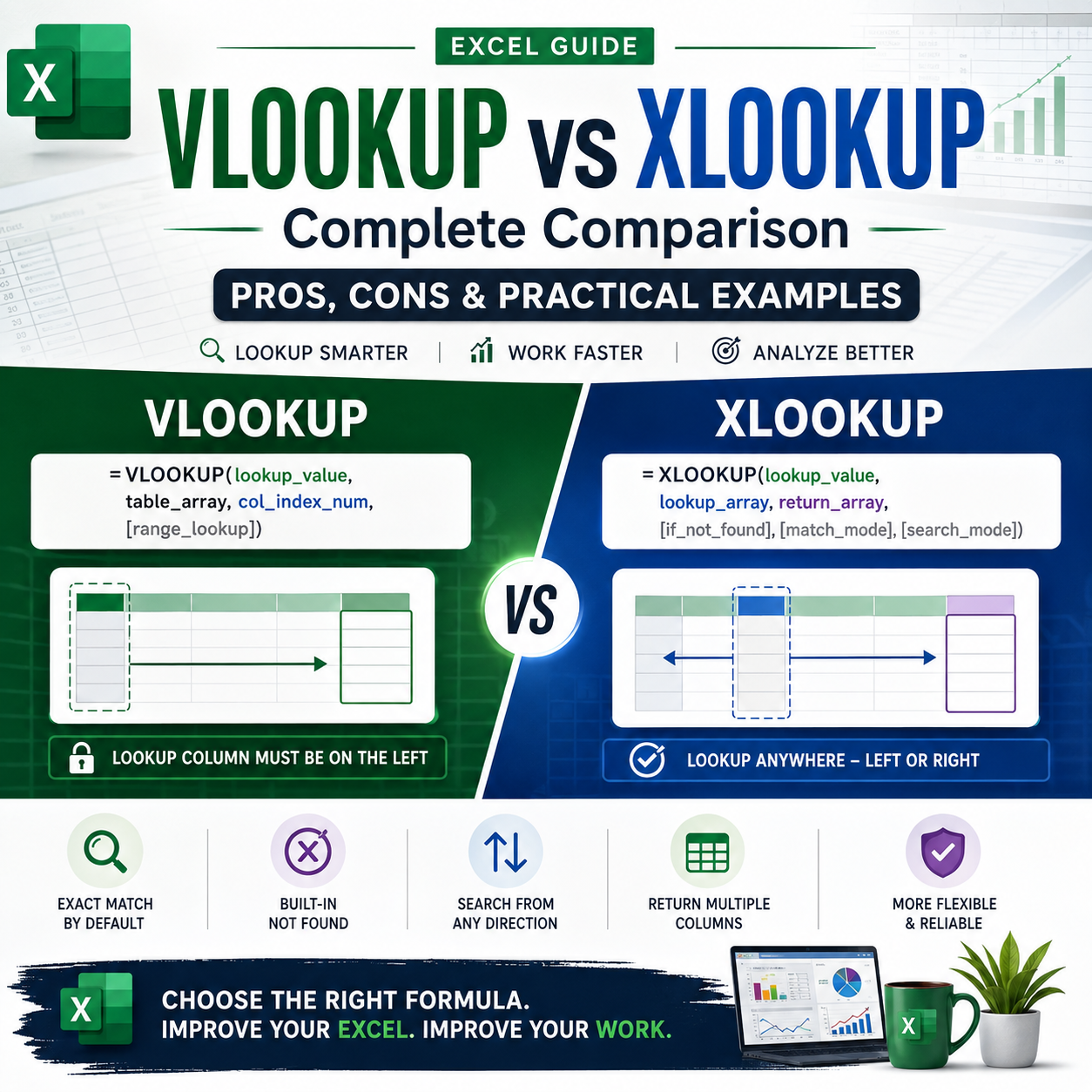
=VLOOKUP(lookup_value, table_array, col_index_num, [range_lookup])Example
Suppose you have a customer master:
| Customer ID | Customer Name | City | Sales |
|---|---|---|---|
| C001 | ABC Store | Riyadh | 25,000 |
| C002 | XYZ Market | Jeddah | 32,000 |
| C003 | Star Trading | Dammam | 18,500 |
To find the sales of customer C002:
=VLOOKUP("C002",A2:D4,4,FALSE)The formula searches for C002 in the first column and returns the corresponding value from the fourth column.
Advantages of VLOOKUP
- Easy to learn and widely used.
- Available in virtually all modern and older Excel versions.
- Familiar to most Excel users.
- Works well for simple lookup requirements.
- Useful when the lookup column is positioned on the left and the return column is on the right.
- Many existing Excel workbooks and business reports already use VLOOKUP.
Disadvantages of VLOOKUP
The biggest limitation is that the lookup column must be the first column of the selected table.
For example, if your data looks like:
| Customer Name | Customer ID | Sales |
| ABC Store | C001 | 25,000 |
| XYZ Market | C002 | 32,000 |
You cannot directly use VLOOKUP to search for the Customer ID in column B and return the Customer Name from column A.
Another limitation is that VLOOKUP uses a column number to determine which column to return:
=VLOOKUP(A2,Sheet2!A:D,4,FALSE)If someone inserts or removes columns within the lookup range, the formula may return incorrect results or require modification.
What Is XLOOKUP?
XLOOKUP is a newer lookup function designed to overcome many of the limitations of VLOOKUP and other traditional lookup functions.
Basic Syntax
=XLOOKUP(lookup_value, lookup_array, return_array, [if_not_found], [match_mode], [search_mode])Example
Using the same customer data:
=XLOOKUP("C002",A2:A4,D2:D4)This searches for C002 in column A and returns the corresponding sales value from column D.
XLOOKUP does not require you to specify a column number.
XLOOKUP Can Look Left or Right
One of the biggest advantages of XLOOKUP is that the lookup column and return column can be anywhere.
For example:
=XLOOKUP("C002",B2:B4,A2:A4)Here, Excel searches for C002 in column B and returns the Customer Name from column A.
This is something traditional VLOOKUP cannot easily do.
VLOOKUP vs XLOOKUP: Side-by-Side Comparison
| Feature | VLOOKUP | XLOOKUP |
| Lookup direction | Left to right | Left or right |
| Requires lookup column first? | Yes | No |
| Uses column number? | Yes | No |
| Exact match | Requires FALSE | Default behavior |
| Approximate match | Supported | Supported |
| Custom "Not Found" message | Requires IFERROR | Built in |
| Search from bottom | No direct option | Yes |
| Return multiple columns | Limited | Yes |
| Horizontal lookup | Not ideal | Yes |
| Formula flexibility | Moderate | High |
| Ease of maintenance | Moderate | Excellent |
| Compatibility with older Excel | Excellent | Limited |
| Risk from inserted columns | Higher | Lower |
Exact Match: VLOOKUP vs XLOOKUP
With VLOOKUP, you normally need to specify FALSE for an exact match:
=VLOOKUP(A2,E2:H100,4,FALSE)If you accidentally omit the fourth argument, VLOOKUP may perform an approximate match, which can produce unexpected results.
XLOOKUP uses exact matching by default:
=XLOOKUP(A2,E2:E100,H2:H100)This makes XLOOKUP safer and easier for many everyday lookup tasks.
Handling Missing Values
VLOOKUP often returns #N/A when it cannot find a value.
You can combine it with IFERROR:
=IFERROR(VLOOKUP(A2,E:H,4,FALSE),"Not Found")XLOOKUP provides a dedicated argument for this:
=XLOOKUP(A2,E:E,H:H,"Not Found")This makes the formula cleaner and easier to understand.
Searching From the Bottom
XLOOKUP also provides an option to search from the last matching record.
For example:
=XLOOKUP(A2,A:A,D:D,"Not Found",0,-1)The -1 search mode tells Excel to search from the bottom.
This can be extremely useful when the same customer, product, or transaction appears multiple times and you want the latest occurrence.
VLOOKUP does not have an equivalent built-in search-from-bottom option.
Returning Multiple Columns
XLOOKUP can return multiple columns from a matching row.
For example:
=XLOOKUP(A2,A2:A100,B2:D100)If the matching customer is found, Excel can return the Customer Name, City, and Sales columns together.
This works particularly well with Excel's dynamic array functionality.
Performance and Large Datasets
For small datasets, the performance difference between VLOOKUP and XLOOKUP may not be noticeable.
However, when working with large customer masters, sales databases, transaction files, or reporting models, formula design becomes increasingly important.
Using specific ranges rather than entire columns can help improve workbook performance:
=XLOOKUP(A2,$A$2:$A$100000,$D$2:$D$100000)instead of:
=XLOOKUP(A2,A:A,D:D)The same principle applies to VLOOKUP.
When Should You Use VLOOKUP?
VLOOKUP is still a good choice when:
- You work with older Excel versions.
- You are maintaining an existing workbook.
- Your lookup table has a simple left-to-right structure.
- Your organization has standardized VLOOKUP-based templates.
- You need compatibility with users who may not have newer Excel versions.
For example, a legacy sales report containing thousands of existing VLOOKUP formulas may not need to be completely redesigned simply because XLOOKUP is available.
When Should You Use XLOOKUP?
XLOOKUP is generally the better choice when:
- You use Microsoft 365 or a recent Excel version.
- You need to look up values to the left.
- Your data structure changes frequently.
- You want cleaner formulas.
- You need custom "Not Found" messages.
- You need to return multiple columns.
- You need the first or last matching result.
- You want formulas that are easier to maintain.
For modern Excel-based reporting and analytics, XLOOKUP is usually the preferred option.
Practical FMCG Example
Consider a customer master containing:
| Customer ID | Customer Name | Channel | Region | Sales Route |
| C1001 | Al Noor Store | TT | Riyadh | RYD-001 |
| C1002 | Al Safa Market | MT | Riyadh | RYD-002 |
| C1003 | Star Trading | WS | Jeddah | JED-015 |
If you want to retrieve the sales route based on Customer ID, VLOOKUP could be:
=VLOOKUP(A2,CustomerMaster!A:E,5,FALSE)XLOOKUP would be:
=XLOOKUP(A2,CustomerMaster!A:A,CustomerMaster!E:E,"Not Found")The XLOOKUP version is easier to understand because you can immediately see where Excel searches and what it returns.
VLOOKUP vs XLOOKUP: Pros and Cons
VLOOKUP — Pros
Advantages:
- Simple and familiar.
- Excellent backward compatibility.
- Easy for beginners.
- Widely supported in existing Excel files.
- Suitable for straightforward lookup operations.
VLOOKUP — Cons
Disadvantages:
- Lookup column must be on the left.
- Uses column numbers.
- Vulnerable to structural changes in the lookup table.
- Exact matching requires
FALSE. - No built-in search-from-bottom capability.
- Less flexible for complex lookup scenarios.
XLOOKUP — Pros
Advantages:
- Can look left or right.
- Exact match is the default.
- No column index numbers.
- Built-in "Not Found" handling.
- Can search from the beginning or end.
- Can return multiple columns.
- More flexible and easier to maintain.
- Works naturally with modern Excel dynamic arrays.
XLOOKUP — Cons
Disadvantages:
- Not available in some older Excel versions.
- Existing users may need time to learn it.
- Legacy workbooks may still require VLOOKUP for compatibility.
- Some organizations may have standardized older formulas and templates.
Final Verdict: Which One Is Better?
For modern Excel users, XLOOKUP is generally the better choice.
VLOOKUP remains useful because it is widely supported, familiar, and perfectly capable of handling many traditional lookup requirements. However, XLOOKUP provides a more flexible and robust approach to retrieving data.
The most important difference is simple:
VLOOKUP tells Excel which column number to return. XLOOKUP tells Excel exactly where to search and exactly what range to return.
For modern business applications such as customer master management, sales reporting, route planning, inventory analysis, financial reporting, and Power BI data preparation, XLOOKUP can significantly simplify Excel workflows.
Quick Recommendation
Use VLOOKUP when:
You need maximum compatibility or are working with an existing legacy workbook.
Use XLOOKUP when:
You are creating a new Excel solution and have Microsoft 365 or a modern version of Excel.
Best practice:
For new projects, learn and use XLOOKUP. Keep VLOOKUP knowledge because you will continue to encounter it in existing Excel workbooks.
Conclusion
VLOOKUP established itself as one of Excel's most important lookup functions, but XLOOKUP represents a major improvement in flexibility and usability.
Learning both is valuable. VLOOKUP helps you understand traditional Excel lookup logic, while XLOOKUP provides the modern approach.
If you regularly work with large datasets, customer databases, sales reports, route plans, or business dashboards, mastering XLOOKUP can make your Excel formulas simpler, more reliable, and easier to maintain.
No comments yet. Be the first to share a thought.